
 Russia
  Netherland
  Vietnam















Key Capabilities
Explore our IT services: innovative solutions, cutting-edge technology, and expert support to transform your business digitally.
- Home
- Key Capabilities
Comparison with Alternatives
Key Capabilities
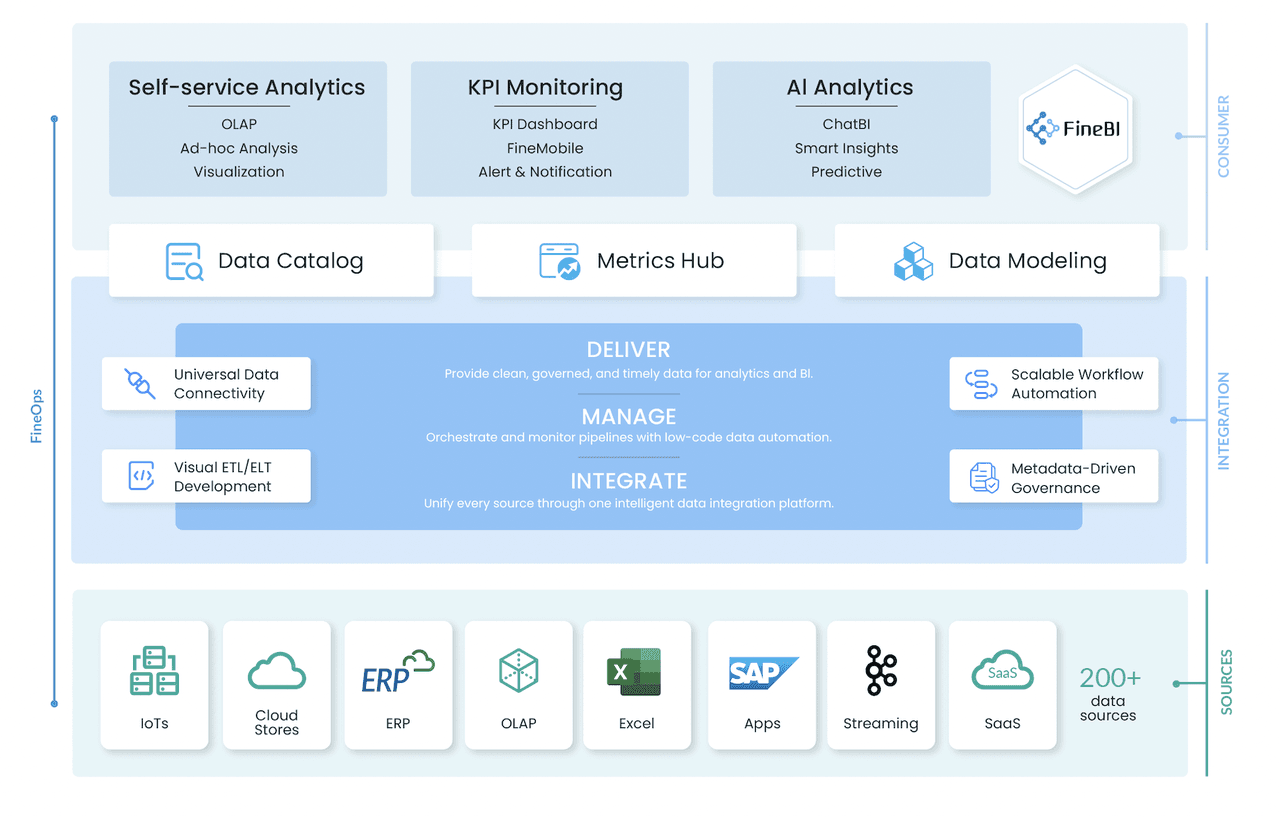
Product Architecture
VisoraBI 7.0 empowers enterprises to evolve from having an abundance of data to becoming data–driven. With it, all their members can analyze, make decisions, and take action based on trusted data with confidence.
Metrics Hub and Data Catalog enable VisoraBI to scale analytics while maintaining governance and consistency.
Data Management
Data management in VisoraBI covers the complete chain from connecting data sources, organizing common data sets, refining business indicators, and making data available to business users securely.
Data Connection
Connect Data is the entry point for importing data into VisoraBI. Once deployed, BI Administrator connects VisoraBI to the company’s operational databases so that the system can read real-time or regularly updated business data. With the connection established, other components such as catalog, metrics, and dashboards can directly use the data without importing it.
The Database category offers the following data connections:
Data Preparation
The tool offers two main modes of data access, which helps to address the needs of different users.
Live Connection
Extract
Data Catalog
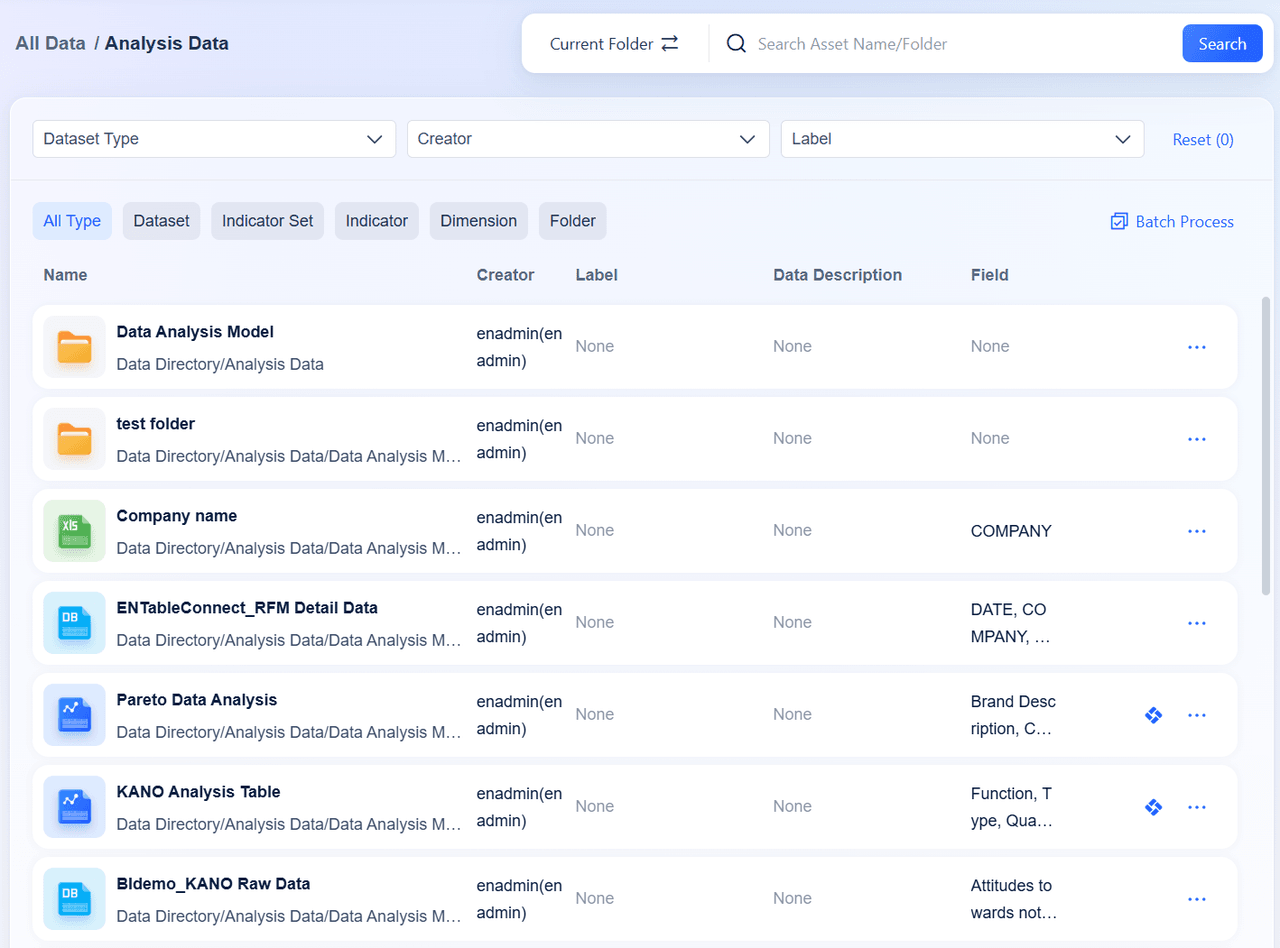
After establishing the connection, we can import frequently used or master tables from the database into the Data Catalog. The catalog is a collaborative workspace where high-quality, widely accessible datasets are stored for business users’ convenience. If some tables in the catalog appear to be poorly structured, or the data quality is low, such datasets can be sent to the Metrics Hub for processing.
What Can Be Added to the Data Catalog?
Excel Dataset
SQL Dataset
Database Table
Published Self-Service Dataset
Published Metrics
Metrics Hub
Metric Hub is a central repository of business metrics used across the organization. For each metric it stores the definition, calculation logic, related fields, and basic business description. By consolidating all the metric definitions in one place, Metrics Hub helps ensure that calculations are consistent across the organization and makes it easier for analysts and business users to discover and understand how a metric is calculated. In addition, Metrics Hub provides the semantic foundation for the VisorachatBI, enabling it to answer business questions using governed business metrics and avoid providing answers based on arbitrary calculations.
Data Editing
Data Preparation offers a visual interface in which a user arranges raw data into a format suitable for analysis. The software allows you to combine different data sources, blend, and perform operations such as data field cleansing, calculated fields, and restructuring. For the most part, the preceding steps in data preparation are usually handled by database administrators in preparation for the data warehouse. In short, Data Preparation is a tool wherein a person commences analysis for the first time. You may prepare the dataset for analysis once more in the future. This way, you can make changes and apply modifications without any technical support. The final formatted data set can be utilized for dashboards, charts, and ChatBI.
Dashboarding & Visualization
The Dashboarding & Visualization module is where the user actually builds the analytical view. After selecting the dataset, the user can generate charts by designating fields and assigning them to axes, indicators, or dimensions. The platform also provides visual elements ranging from simple tables and bar graphs to line trends, scatter plots, mixed charts, maps, KPI summary cards, and much more. All of which are customizable to fit whatever chart type the user needs for their analysis.
In dashboard design, users can arrange charts, text blocks, images, and other elements at their discretion. The elements can be organized as needed on the layout canvas. In addition, each dashboard element can be grouped, reordered, or resized to best fit the design. The user can add various interactive elements such as global filters or links between different dashboards or charts so that readers can further explore the information on their own.
Once completed, a dashboard can be saved for future use either by the creator or made available to other organization members. Those who have access to the dashboard can view the document on the platform, use filters, or navigate between different dashboards.
For more involved reporting needs, VisoraBI allows for building reports over multiple pages, structuring the information in the form of chapters, with different aspects of the business or levels of detail separated on different pages. Additionally, users may add comments, titles, or highlights, to structure the information and help the report reader.
Collaboration & Sharing
Collaboration
Dashboard Publish Request
Public Link Sharing
Internal Sharing to the Catalog
Security & Permissions
Security & Permissions in VisoraBI define the principles of data, dashboards, and metrics availability. Various levels of access can be set for individual users or groups of users, thus enabling organizations to determine not only who has access to what but also what specific data, fields, or rows can be viewed or edited. In addition, access rights can be granted on a per-department basis, enabling companies to customize permissions according to their specific business needs.
Moreover, VisoraBI allows restricting access to sensitive data at both row and column levels, thus ensuring that only the appropriate users can see particular data items or records. All these features are available for dashboards, metrics, and ChatBI.
In terms of user authentication, it is possible to use standard enterprise authentication systems, such as LDAP, SSO, and Active Directory. By using this feature, companies can ensure their data privacy and comply with the relevant regulatory requirements, such as internal policies or government regulations. Finally, user activities can be monitored, and all dashboard-related activities, including sharing, viewing, and editing, can be tracked and audited for compliance.